
Shape a world with its own creative controls
A cottage a little farther from the path can change the whole arrival. The right tool lets you explore that choice without learning every detail of the project.
In this guide
Practical guidance for creating, playing, and shaping games with the agent-native Dashpop Game Engine. Each game has its own creative controls, artwork, and source.
Find the place or character you want to change
Open Editor and use the navigation, search, and selected item’s inspector. The game publishes its own hierarchy and controls. A page for a named character can bring their dialogue and related choices together.
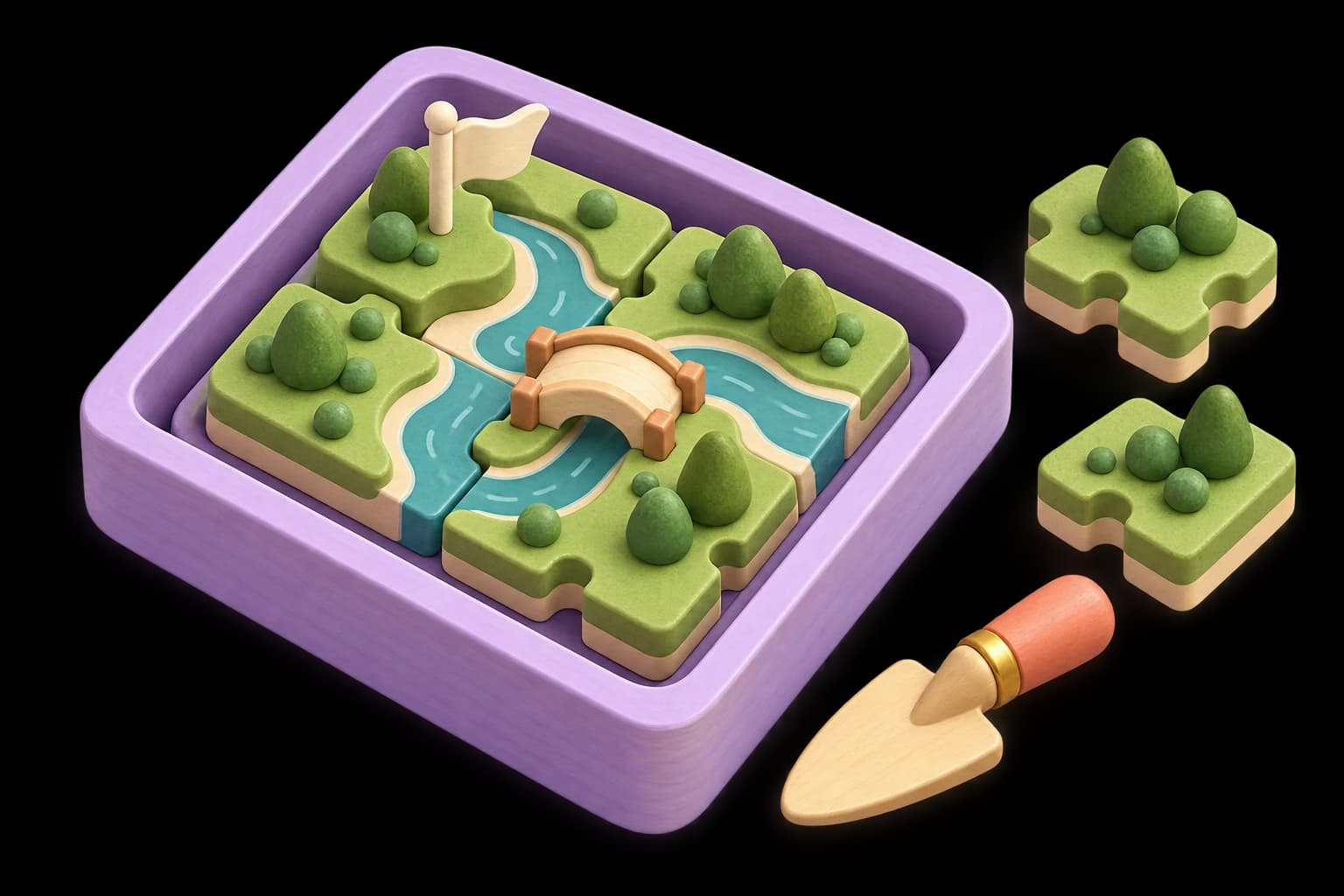
World tools exist when the game has authored them. One game may offer island brushes and object placement; another may offer a fold or a route adjustment. If you cannot find a useful control, ask your agent to create one bound to the real game.
See what your choice actually changes
Editor is a creative workspace. Play is the player’s experience. Return to ordinary Play to judge a change; a scene-editing gesture alone does not establish that a puzzle, route, or encounter still works.
- Choose one published control or a supported world tool.
- Make a small adjustment and read the result.
- Return to Play and try the relevant interaction.
- Keep the saved change or use undo for that accepted edit.
- Check that the choices you wanted to preserve are still present.
Judge the artwork where it belongs
Assets helps you inspect the visual pieces of the project. A beautiful isolated asset still needs the right scale, framing, lighting, and relationship to the playable world.
After an artwork change, look at the opening and play the affected moment. Check whether the character is readable, the path is clear, and the important interaction still matches what the player sees. Asset inspection and game observation answer different questions.
Keep the Editor Handbook nearby as you work. Pick one change, test it, and keep what helps.